

Açıklama


Ürün Sıfır Kutusu Açılmamış Haldedir.
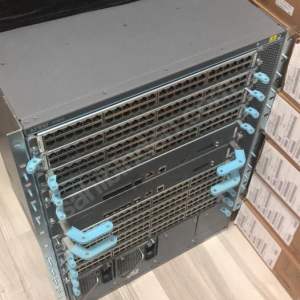
EX4500-VC1-128G 128 Gbps
Virtual Chassis module
Virtual Chassis Module in EX4500 Switches
The Virtual Chassis module is installed horizontally on the rear panel of an EX4500 switch chassis. The Virtual Chassis module has two dedicated Virtual Chassis ports (VCPs) that can be used to interconnect the EX4500 switch with an EX4200 switch or an EX4500 switch in a Virtual Chassis configuration. The module is an offline field-replaceable unit (FRU).
NOTEThe Virtual Chassis module is supported on EX4500 switches in Junos OS Releases 11.1 and later.
The Virtual Chassis module comes preinstalled in the switch chassis in the EX4500-40F-VC1-FB, EX4500-40F-VC1-BF, and EX4500-40F-VC1-DC switch models. You must order it separately for all other switch models. See EX4500 Switch Models.
NOTEVirtual Chassis cables and Virtual Chassis cable connector retainers are not part of the EX4500 switch’s shipping configuration. If you want to purchase these, you must order them separately.
EX4500 switches running Junos OS Release 10.4R2 or later 10.4 releases will not boot if you do not install the intraconnect module in the switch.
EX4500 switches running Junos OS Release 11.1R1 or later releases will not boot if you install neither the intraconnect module nor the Virtual Chassis module in the switch.
Figure 6 shows the Virtual Chassis module.

The Virtual Chassis module has two LEDs (labeled ST and VC MODE ) on the left side of its faceplate that indicate the status and the operating mode of the Virtual Chassis module. See Figure 7.

Table 2 describes the LEDs on the Virtual Chassis module in an EX4500 switch.
Table 2: Virtual Chassis Module LEDs
| LED | State | Description |
|---|---|---|
| ST | Green | The Virtual Chassis module is functioning normally. |
| Unlit |
One of the following:
|
|
| VC Mode | Green | The Virtual Chassis module and VCPs are active. |
| Unlit | The Virtual Chassis module is operating in Intraconnect mode. The VCPs are not active. |
The Virtual Chassis module has two captive screws on the faceplate that secure the module to the switch chassis. To remove or replace the Virtual Chassis module, follow the instructions in Removing a Virtual Chassis Module from an EX4500 Switch.
Chassis Status LEDs in EX4500 Switches
The front panel of an EX4500 switch has three chassis status LEDs (labeled ALM, SYS, and MST) on the far right side of the panel, next to the Menu and Enter buttons (see Figure 8).
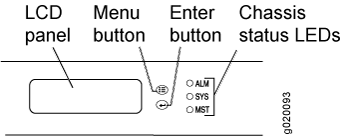
Table 3 describes the chassis status LEDs in an EX4500 switch, their colors and states, and the status they indicate. You can view the colors of the three LEDs remotely through the CLI by issuing the operational mode command show chassis led.
Table 3: Chassis Status LEDs in an EX4500 Switch
| LED Label | Color | State and Description |
|---|---|---|
| ALM (Alarm) | Unlit | There is no alarm or the switch is halted. |
| Red | There is a major alarm. | |
| Amber | There is a minor alarm. | |
| SYS (System) | Green |
|
| MST (Primary) | Green |
In a standalone EX4500 switch:
In a Virtual chassis configuration:
|
A major alarm (red) indicates a critical error condition that requires immediate action.
A minor alarm (amber) indicates a noncritical condition that requires monitoring or maintenance. A minor alarm that is left unchecked might cause interruption in service or performance degradation.
All three LEDs can be lit simultaneously.
https://www.juniper.net/documentation/en_US/release-independent/junos/topics/topic-map/ex4500-maintaining-virtual-chassis-module.html#id-removing-a-virtual-chassis-module-from-an-ex4500-switch


Değerlendirmeler
Henüz değerlendirme yapılmadı.